OANN, like everybody else who honestly covered the Facebook Fraudulent 2020 Presidential Election, was kicked off YouTube.
Happily, they are now on Rumble, and have plenty of videos.
Here is your link:
Here is an example video:
LINK: https://rumble.com/vdeolb-one-on-one-with-rep.-matt-gaetz-in-wy..html
VIDEO:
Now – how did I get that video to show up?
It took me a while to figure this out.
TL;DR Version:
- You need to use the IFRAME version of the embed code from Rumble, and
- You need to use it in the Custom HTML block in WordPress posts, and
- You need to use it in the Source Code pop-up { } in the reply box for comments
Full Version:
Copy the Embed Code
Here is an image of a video on Rumble. Look in the lower right corner, under Matt Gaetz.

See that “EMBED” button? Click that to get a pop-up with the embed code.
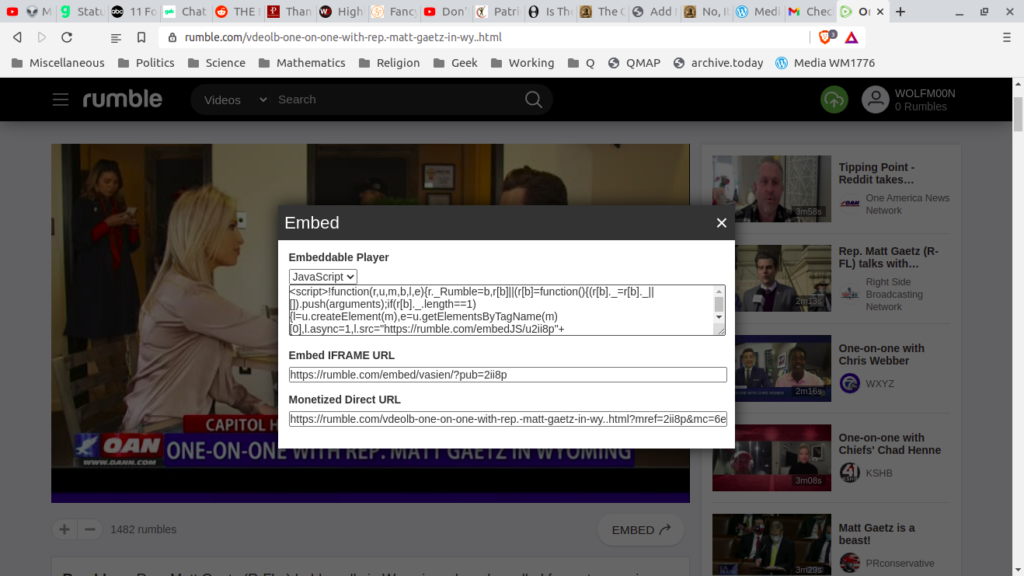
You want the top item – “Embeddable Player“. You are going to copy the code. However, you will note that it has a little drop-down label at the top of the code there that says “JavaScript“. You do NOT want that code. You want different code.
Click on “JavaScript” and select the OTHER code, “IFRAME“. It’s less code – more compact – and WORKS.
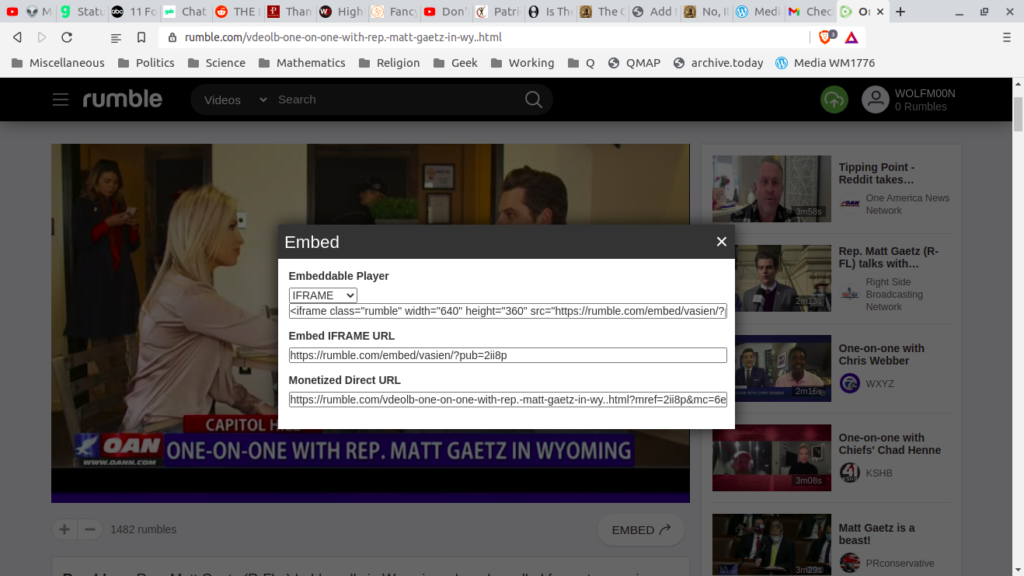
Now, it’s easy. Just click on that code under “IFRAME” to highlight it (it will DARKEN), and COPY.
Putting the Embed Code into WordPress Posts
To put the IFRAME code into a WordPress post, you need to put it into what is called a Custom HTML block. To get one of those blocks, start with a paragraph block, then click on the PLUS SIGN to get the little block-type-choice pop-up.
That choice pop-up will NOT have the type of block you want – you have to search for it.
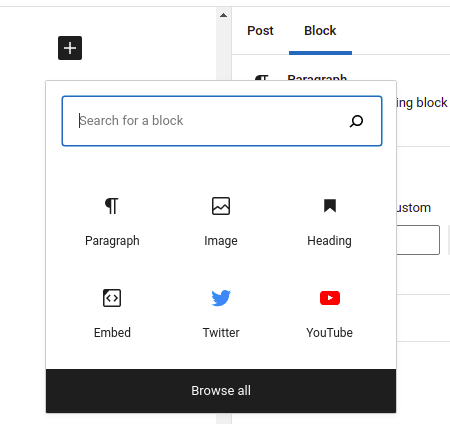
Type “html” into the Search widget in that block, and you will get the correct choice and nothing else – the Custom HTML block.
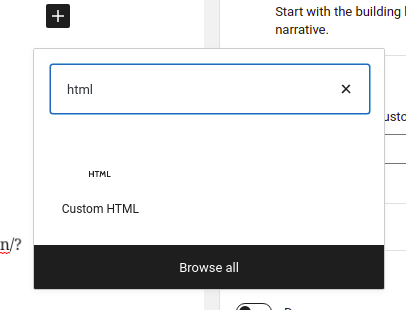
Click on the Custom HTML block choice. You will get the BLANK HTML block:

Click on the “HTML text line” that says “Write HTML…”, and PASTE the IFRAME code into that.
REPEAT – paste the IFRAME code RIGHT THERE in “Write HTML…”.
Here is the result, shown with a couple of FILLED paragraph blocks above, and one empty paragraph block below (sorry – it’s a bit confusing).
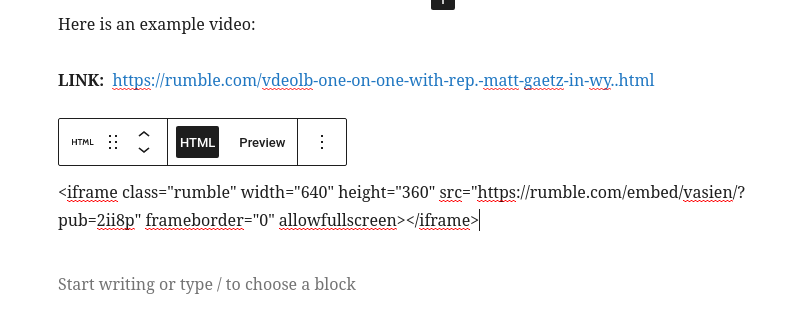
NOW – see how the block has two “view” selections – HTML and Preview? Click Preview…

That’s it! You’re done! The video will appear in the post, just like that.
Putting the Embed Code in WordPress Comments
If you are not an author but a commenter, then you will want to put the embed code – the IFRAME code – into a comment in WordPress.
Note that we are using the wpDiscuz commenting system with its Embeds add-on, which makes it easy and reliable to do HTML embeddings.
Here is the top-level comment box from wpDiscuz in WordPress.

Notice the “toolbox” at the bottom: B I U (etc.) which has 13 items.
- Bold
- Italics
- Underline
- Strike-out
- Numeric List
- Bullet List
- Block Quote
- Code Snippet </>
- Link
- Source Code { }
- Spoiler [+]
- Emojis
- Stickers
The TENTH item, Source Code, symbolized by { }, is what you want.
This item is a bit like turning your whole reply, temporarily, into a Custom HTML block.
Here is a partly worked reply.
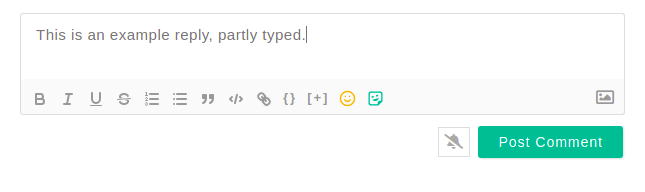
Now click on the { } Source Code tool.
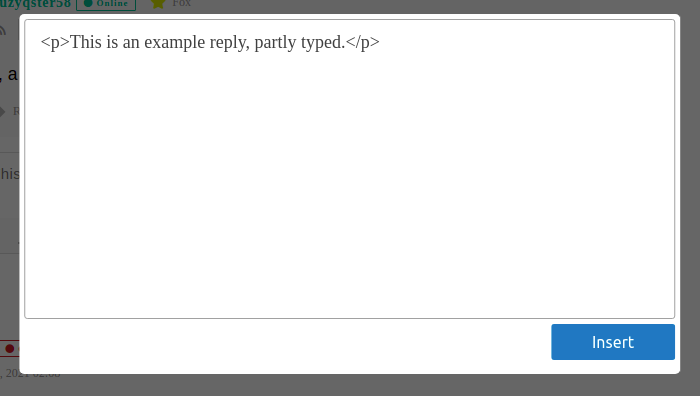
Now PASTE in the IFRAME code for the embedded video. Just do it at the very end. You can edit the result easily.
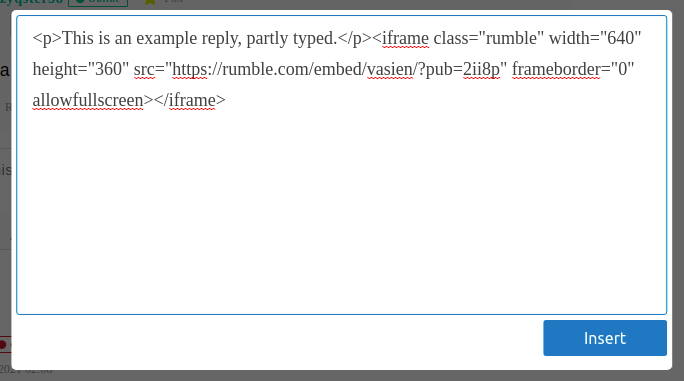
Click the “Insert” button, which PREVIEWS the video in the reply.

Note that the text is a bit close to the top edge of the video – this can be corrected by editing, and more text can be added before that extra spacing, and at the end.
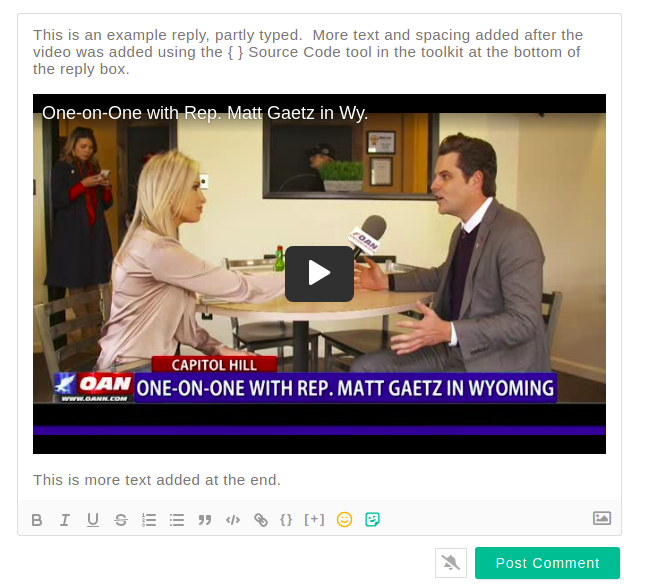
Now just post the comment by clicking “Post Comment”.
The text will be included below, as an actual reply.
That’s it!
Thanks and have a great week with lots of OANN and Rumble videos!
W